Enabling ArcGlass for your Microsoft 365 tenant
Two independent things:
- 1. SSO Sign-in — self-serve; your team can start right away, with nothing for an admin to pre-approve.
- 2. Data ingestion (calendar, meetings, mail, recordings) — a separate, per-surface admin consent you do from inside ArcGlass, and only for the surfaces you turn on.
Every permission ArcGlass requests is read-only or sign-in only — no app requests write, send, or delete on any surface.
The apps ArcGlass uses
Depending on which scenarios you enable, ArcGlass uses up to four separate, least-privilege Entra apps — one for sign-in and one per ingestion surface. Only sign-in is required; the rest are optional, and you configure just the ones you need:
- Sign-in (SSO) — always on. Self-serve, delegated sign-in only, no admin consent. Section 1.
- Meetings & calls — optional. Reads calendars, online-meeting details, transcripts, recordings, and AI insights.
App (client) id:e28c0adf-6727-4af6-bc9c-6545b4236967 - Email — optional. Reads mail in the mailboxes you add to a pipeline.
- SharePoint — optional. Reads recordings (and, only if you choose, writes briefs) on the specific sites you allow-list.
- Teams meeting transcripts — not a separate app: one extra one-time grant (a Teams Application Access Policy) on whichever app reads your meetings (Meetings & calls, or the combined Calendar, Meetings and Mails app), required before Teams transcripts flow.
Every app is read-only or sign-in only — the only write is an optional per-site SharePoint write role for briefs. Data ArcGlass processes under any surface is governed by our Data Processing Agreement (DPA), available from your ArcGlass account team along with the subprocessor list and security questionnaire.
1. SSO Sign-in
Sign-in uses a dedicated Entra app with only sign-in-level delegated permissions — no mailbox, calendar, or file access, and no write access of any kind. It's self-serve: there's no consent URL and nothing for an admin to approve first.
Consent — for the whole organization, or just yourself. The first sign-in shows a one-time Microsoft consent prompt for the permissions below. None require admin consent, so you choose how it's granted:
- Only for yourself — each person approves their own sign-in the first time. Nothing for an admin to do; this always works.
- For the whole organization — optionally, a Global (or Application / Cloud Application) Administrator ticks "Consent on behalf of your organization" once on the prompt, so no one else is asked.
The SSO app requests only these delegated Microsoft Graph permissions — all sign-in / read-your-own-profile, none needing admin consent, none granting write:
| Permission | Type | What it's for | Admin consent |
|---|---|---|---|
openid | Delegated | Sign the user in. | No |
profile | Delegated | View the user's basic profile. | No |
email | Delegated | View the user's email address. | No |
User.Read | Delegated | Sign in and read the user's own profile. | No |
offline_access | Delegated | Keep the user signed in without re-prompting (refresh token). | No |
Getting started
The first person from your company goes to console.arcglass.io/signup and clicks Continue with Microsoft — that creates your organization's workspace and makes them the owner. Everyone else signs up the same way and joins as a member. No admin action gates this.
2. Data ingestion
Connecting M365 for ingestion (calendar, meetings, mail, recordings) is separate from sign-in and done per surface. ArcGlass keeps each surface in its own least-privilege Entra app — Meetings & calls, Email, and SharePoint — so a tenant admin consents to each independently, only for the surfaces you enable, and never sees another surface's permissions. A Microsoft Entra admin role (Global, Cloud Application, or Application Administrator) is needed for this step.
Every ingestion permission is read-only. No app requests write, send, or delete. The one place any writing can happen is optional and opt-in: if you want ArcGlass to deliver briefs into a SharePoint site, you grant a write role on that single site yourself.
Connect the surfaces
An admin opens the Microsoft 365 integration in ArcGlass and clicks Connect on each surface you want — Meetings & calls, Email, or both. Each Connect opens a Microsoft consent page for that surface's least-privilege app; sign in as a Global, Cloud Application, or Application Administrator, complete any MFA prompts (the same MFA you use for the Microsoft admin center), and click Accept. Enable meetings only, email only, or both — and add the other later.
For admins auditing an app in Entra ID → Enterprise applications → [the app] → Permissions, here is the precise list per surface.
Meetings & calls
Application permissions, admin consent required — all read-only. This is the app you grant the Teams Application Access Policy below.
| Permission | Type | What it's for | Admin consent |
|---|---|---|---|
Calendars.Read | Application | Read calendars in all mailboxes — find the meetings to ingest. | Yes |
OnlineMeetings.Read.All | Application | Read online-meeting details. | Yes |
OnlineMeetingTranscript.Read.All | Application | Read transcripts of online meetings. | Yes |
OnlineMeetingRecording.Read.All | Application | Read recordings of online meetings. | Yes |
OnlineMeetingArtifact.Read.All | Application | Read online-meeting artifacts. | Yes |
OnlineMeetingAiInsight.Read.All | Application | Read AI insights for online meetings. | Yes |
OnlineMeetingAiInsight.Read.Chat | Application | Read AI insights for meetings tied to a Teams chat. | Yes |
User.ReadBasic.All | Application | Read users' basic profiles — resolve attendee identities. | Yes |
Grant Teams meeting-transcript access (Application Access Policy)
Admin consent above lets ArcGlass call Microsoft Graph, but reading Microsoft Teams meeting transcripts needs one more one-time grant that Microsoft keeps separate from Graph consent: a Teams Application Access Policy authorizing the ArcGlass app that reads your meetings to do so on behalf of your users. Until it's applied, Graph returns 403 on the Teams online-meeting and transcript endpoints. This is Teams-transcript-specific — Outlook calendar ingestion needs nothing here.
Which app id to authorize. The policy must name the exact app that pulls your transcripts — and depending on which ingestion surface you connected, that's one of two ArcGlass apps:
- Meetings & calls app —
e28c0adf-6727-4af6-bc9c-6545b4236967 - Calendar, Meetings and Mails app (the combined surface) —
4080683c-4cb8-4aef-87c9-8742964b1383
Authorizing both ids (below) is the safe default — it covers either surface and any later switch. If you'd rather grant just one, use the id of the surface you connected; and if a pull is already failing, the 403 No application access policy found for this app <id> message names the exact id to add.
Run this once as a Teams administrator in PowerShell. The Calendar, Meetings and Mails surface of the Microsoft 365 integration inside ArcGlass shows the same commands with your app ids already filled in, plus a Verify Teams access button. There are two steps: create the policy, then assign it — and the assignment is where you choose the scope.
Step 1 — create the policy (authorizes ArcGlass's apps to read meetings on a user's behalf; this alone grants nothing until it's assigned):
Connect-MicrosoftTeams
New-CsApplicationAccessPolicy -Identity "ArcGlass-Meetings" `
    -AppIds "e28c0adf-6727-4af6-bc9c-6545b4236967","4080683c-4cb8-4aef-87c9-8742964b1383" `
    -Description "ArcGlass meeting transcript access"
Step 2 — assign it. Pick one scope:
- Per-user (recommended for a pilot / proof of value) — grant to just the mailboxes in your trial, then widen later. Least-privilege, and the safest way to start: only the people you name can have their meetings read.
- Tenant-wide — every current and future mailbox, in one grant. Best once you've validated and want full coverage.
# Per-user — repeat for each pilot mailbox:
Grant-CsApplicationAccessPolicy -PolicyName "ArcGlass-Meetings" -Identity "person@yourcompany.com"

# — or — tenant-wide (all users, current and future):
Grant-CsApplicationAccessPolicy -PolicyName "ArcGlass-Meetings" -Global

# Confirm a specific user's assignment (the reliable check — Get-CsOnlineUser's
# ApplicationAccessPolicy field is no longer populated in current modules):
Get-CsUserPolicyAssignment -Identity "person@yourcompany.com" -PolicyType ApplicationAccessPolicybrew install --cask powershell) and the Teams module (Install-Module MicrosoftTeams -RequiredVersion 5.8.0) first. Either grant can take ~30 minutes to propagate to Microsoft's enforcement layer — if Verify Teams access (or a pull) still returns 403 right after you run it, wait and retry; Get-… shows the new config instantly but enforcement lags. See Microsoft's Configure application access to online meetings docs.Already have a policy named ArcGlass-Meetings — or one left over from an earlier app? New-CsApplicationAccessPolicy fails with "already exists in Tenant scope," and — the subtler trap — a policy that lists the wrong app id still returns 403 No application access policy found for this app…, because Graph checks for a policy on the specific app that made the call. Don't create a second policy; inspect what's there and add the ArcGlass app ids to the existing one with Set-… (which replaces the whole list, so keep any ids already present):
# See which policies exist and the app ids each authorizes:
Get-CsApplicationAccessPolicy | Format-List Identity, AppIds

# Add the ArcGlass app ids, keeping any ids already listed above:
Set-CsApplicationAccessPolicy -Identity "ArcGlass-Meetings" `
    -AppIds "<existing-app-ids…>","e28c0adf-6727-4af6-bc9c-6545b4236967","4080683c-4cb8-4aef-87c9-8742964b1383"

# Confirm it took — the output must include the app id from the 403:
Get-CsApplicationAccessPolicy -Identity "ArcGlass-Meetings" | Format-List Identity, AppIdsGlobal policy is the fallback for any mailbox without an explicit assignment. If yours also lists only an older app id, add the ArcGlass app ids there too (Set-CsApplicationAccessPolicy -Identity "Global" -AppIds …) so future mailboxes aren't blocked. A grant that's already -Global doesn't need re-granting after a Set-… — only re-run Grant-CsApplicationAccessPolicy when you create a brand-new policy.Enable tenant-wide Graph access to transcripts
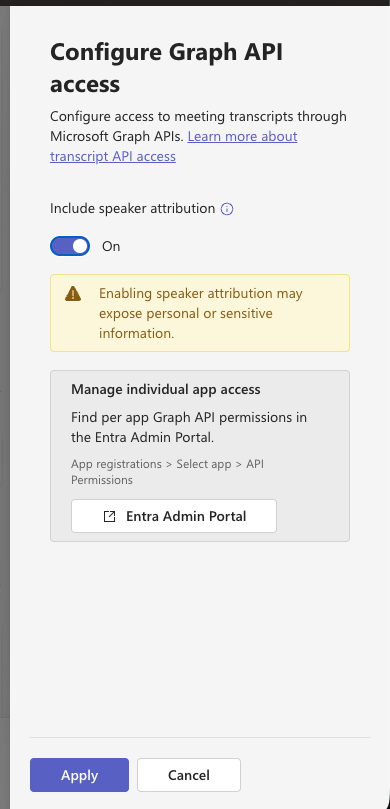
There is one final, tenant-wide switch — separate from the Application Access Policy — that governs whether any app may read Teams transcripts through Microsoft Graph. Microsoft began enforcing it in mid-2026, so tenants that previously worked can start returning 403 Graph API access to transcripts is disabled for this tenant once the app-level gates pass. This setting has the final say — if it's off, no app can read transcripts regardless of consent or Application Access Policy.
Turn it on in the Teams Admin Center (recommended — no PowerShell): go to admin.teams.microsoft.com → Meetings → Meeting settings, scroll to Transcript API access, and set Microsoft Graph access to On.
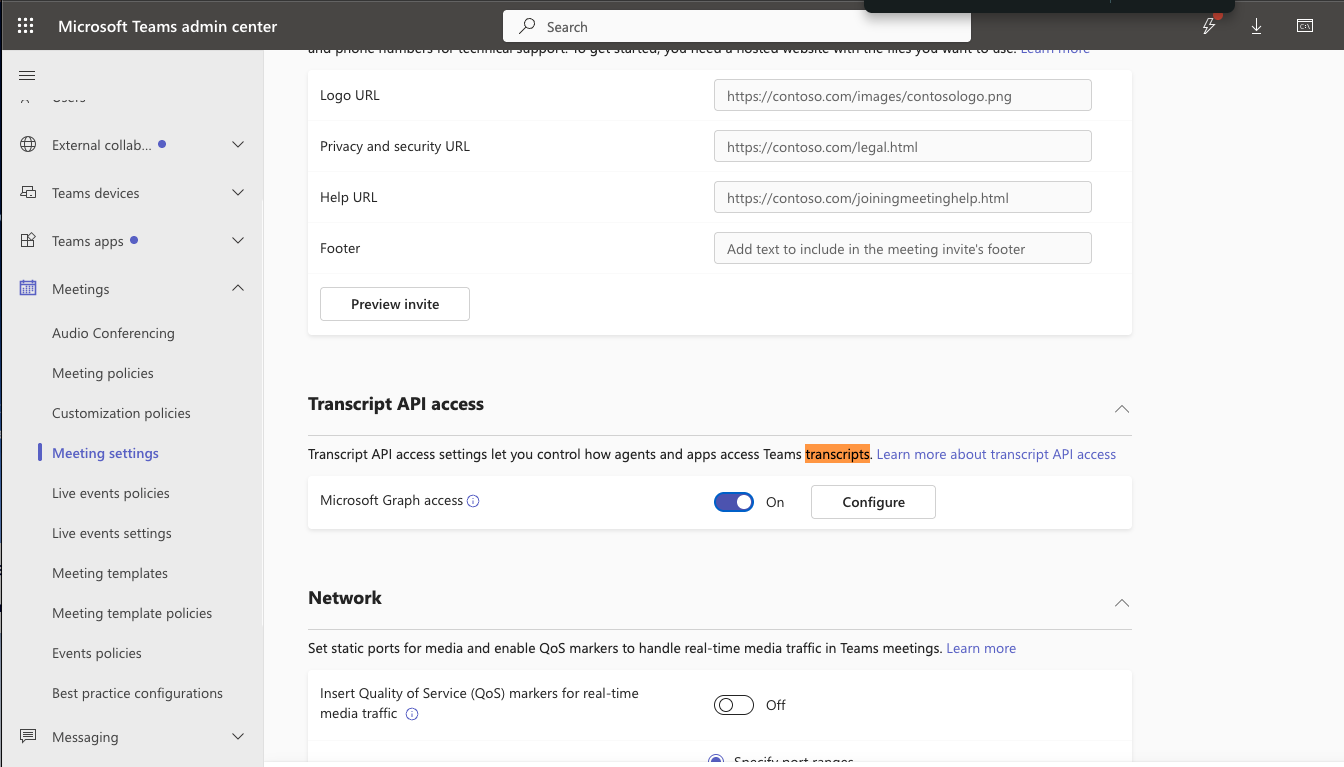
Then click Configure and turn Include speaker attribution on. ArcGlass relies on speaker labels to attribute who said what in each meeting, so leave this On — Microsoft flags that it can expose personal information, which is expected for a meeting-intelligence tool. Click Apply.
Set-CsTeamsMeetingConfiguration -EnableGraphTranscriptAccess $true, but it needs the MicrosoftTeams module 7.9.0 or newer (the property doesn't exist in 5.8.0) — and because the module loads native assemblies, updating it requires a fresh PowerShell window, not Update-Module in a running session. The Admin Center toggle above avoids all of that.Application (mailbox read) + delegated (sign-in) — all read-only. ArcGlass reads only the mailboxes you add to a pipeline.
| Permission | Type | What it's for | Admin consent |
|---|---|---|---|
Mail.Read | Application | Read mail in all mailboxes — scoped by ArcGlass to the pipeline's mailboxes. | Yes |
User.Read | Delegated | Sign in and read the connecting admin's own profile. | No |
The mail and calendar permissions are tenant-wide by Microsoft Graph's design (Graph has no per-mailbox application scope), but ArcGlass only ever reads the mailboxes you explicitly add to a pipeline.
SharePoint (recordings & briefs)
The SharePoint app uses Sites.Selected, which grants no access on its own — the least-privilege model. Your admin then grants ArcGlass a read role on a recordings site (or, optionally, write on a briefs-destination site), one site at a time. Connecting the SharePoint surface alone confers nothing; the per-site grant below is what actually confers and limits access.
| Permission | Type | What it's for | Admin consent |
|---|---|---|---|
Sites.Selected | Application | Reach only the specific SharePoint sites you allow-list, one at a time. No access until you grant a site. | Yes |
1. Grant ArcGlass access to the site
Run this once per site as a SharePoint or Global Administrator. It signs you in with only the privilege needed to create a site permission (that session only) and grants ArcGlass the single role you pass — read for a recordings site, write for a briefs destination:
Install-Module Microsoft.Graph.Authentication -Scope CurrentUser

./grant_arcglass_site_read.ps1 `
    -SiteUrl https://YOURTENANT.sharepoint.com/sites/ArcGlassRecordings `
    -ArcGlassAppId <your ArcGlass SharePoint app id>
Your ArcGlass contact provides the script and your SharePoint app id. Revoke any time with Remove-MgSitePermission — ArcGlass loses access immediately, with nothing to change on our side.
2. Tell ArcGlass which folder
Enter the recordings folder URL — e.g. https://YOURTENANT.sharepoint.com/sites/ArcGlassRecordings/Shared Documents/Meetings — in the SharePoint section of the Microsoft 365 integration settings (or send it to your ArcGlass contact). ArcGlass resolves it to the site, library, and folder and begins picking up new recordings, read-only and app-only, in the background.
read or write on each. Sites.Selected is site-scoped, so a dedicated site keeps ArcGlass's access to exactly the content you intend.What ArcGlass will and won't do
- Read a person's mailbox and meetings only after you individually approve them in Staff → Approvals in the ArcGlass UI.
- Read meeting transcripts and recordings created during the date range you configure.
- Read recordings only from a SharePoint site you grant ArcGlass
readon, and write decks/briefs only to a site you grantwriteon. - Never read a person's mailbox or meetings until you've individually approved them in Staff → Approvals.
- Never touch a SharePoint site you haven't explicitly granted —
Sites.Selecteddenies every site by default. - Never send mail on your behalf (the app does not request
Mail.Send). - Never modify or delete mail, calendar items, or meetings — every Graph permission is read-only.
- Never request write access on any surface by default — the only write is an optional per-site SharePoint
writerole you grant yourself for briefs delivery. - Never share your data with any other ArcGlass customer.
You can revoke at any time from Entra ID → Enterprise applications: remove the ArcGlass SSO app to end sign-in, or remove an individual ingestion app (or a SharePoint site grant) to end just that surface. Each is independent, so revoking one never disturbs the others.
What happens next
- For your users: everyone signs in at console.arcglass.io with Continue with Microsoft. The first person to sign up provisions your workspace and becomes the owner; everyone else joins as a member on their own first sign-up. No admin action gates this.
- For ingestion: a surface starts flowing only after an admin connects it and an ArcGlass admin configures a pipeline selecting which mailboxes and calendars to include. Connecting a surface does not start any data flow on its own.
Troubleshooting
| You see | What to do |
|---|---|
| Login says "Account not found. Please sign up" (or you're bounced to the signup page) | You haven't signed up yet. Click Continue with Microsoft on console.arcglass.io/signup first — after that, sign-in works normally. |
| Login says "This email already has a password-based account" | Your ArcGlass account was created with an email + password, not Microsoft. Ask an ArcGlass admin to switch your account to Microsoft sign-in, then use Continue with Microsoft. |
| "Need admin approval" on the ingestion consent page (no Accept button) | You're signed in as a regular user. Sign out, sign back in as a Global, Cloud Application, or Application Administrator. |
| AADSTS50097 – Device authentication is required | Your tenant's Conditional Access blocks app consent from non-managed devices. Complete the ingestion consent from a domain-joined device, or have your CA admin exempt the ArcGlass app for the consent flow. |
| AADSTS50011 / AADSTS650056 – redirect URI mismatch / misconfigured app | An ingestion app's redirect URI doesn't match ours. Reply to your ArcGlass contact and we'll verify our side. |
Teams transcripts don't appear / 403 No application access policy found for this app | The Teams Application Access Policy isn't applied for the app that pulled the transcript. Two cases: (1) no policy yet — run the New-CsApplicationAccessPolicy / Grant-CsApplicationAccessPolicy commands; (2) a policy exists but names the wrong app id — Set-CsApplicationAccessPolicy … -AppIds to add the id from the 403 message (the ArcGlass Meetings e28c0adf-… or Calendar, Meetings and Mails 4080683c-… app). Allow ~30 min to propagate, then click Verify Teams access. Outlook calendar events are unaffected. |
403 Graph API access to transcripts is disabled for this tenant | A different, later gate than the one above: the app-level checks passed, but the tenant-wide Transcript API access switch is off. Turn on Meetings → Meeting settings → Transcript API access → Microsoft Graph access in the Teams Admin Center (or Set-CsTeamsMeetingConfiguration -EnableGraphTranscriptAccess $true, MicrosoftTeams module 7.9.0+). Allow ~30 min. This switch has the final say — no app can read transcripts while it's off. |
| Need to revoke | Entra ID → Enterprise applications → the ArcGlass SSO or ingestion app → Properties → Delete (each independent). Teams transcript access is revoked separately with Remove-CsApplicationAccessPolicy. |
Security and compliance
- Where the access lives: each ingestion consent records a service principal in your Entra tenant. You retain full visibility and revoke control via the Enterprise applications blade. Sign-in adds a standard user-consented app — no tenant-wide grant.
- SharePoint scope: access is per-site via
Sites.Selected— ArcGlass can reach only the sites you explicitly grant, never your tenant at large. Revoke a single site withRemove-MgSitePermissionwithout affecting the rest of the integration. - What's stored on the ArcGlass side: only your tenant ID (a GUID) and consent metadata — no user passwords or personal access tokens. Mailbox content read by pipelines is stored encrypted at rest in our managed Postgres on Render (US region), separated per customer-org at the row level.
- Subprocessor list, DPA, security questionnaire: available from your ArcGlass account team on request.
Questions
Reply to your ArcGlass account contact, or email support@arcglass.io.